KDS settings: theme, columns and font size
For: kitchen staff and owner.
Set up the kitchen screen so it is easy to read on your screen. Open the settings via the gear icon in the top right.
Click the gear icon in the top right to open Settings.
Under Layout & Appearance, choose the Theme: Light Mode (light) or dark. Dark is more restful for a screen that is on all day.
Adjust the Font Size using the + and - buttons until the text is easy to read from a distance.
Set the number of columns (Grid Columns) so that the tickets fit neatly next to each other on your screen.
Under Order Card Content, choose which information appears on each order card (amount, type, status, pickup code, table number, ingredients).
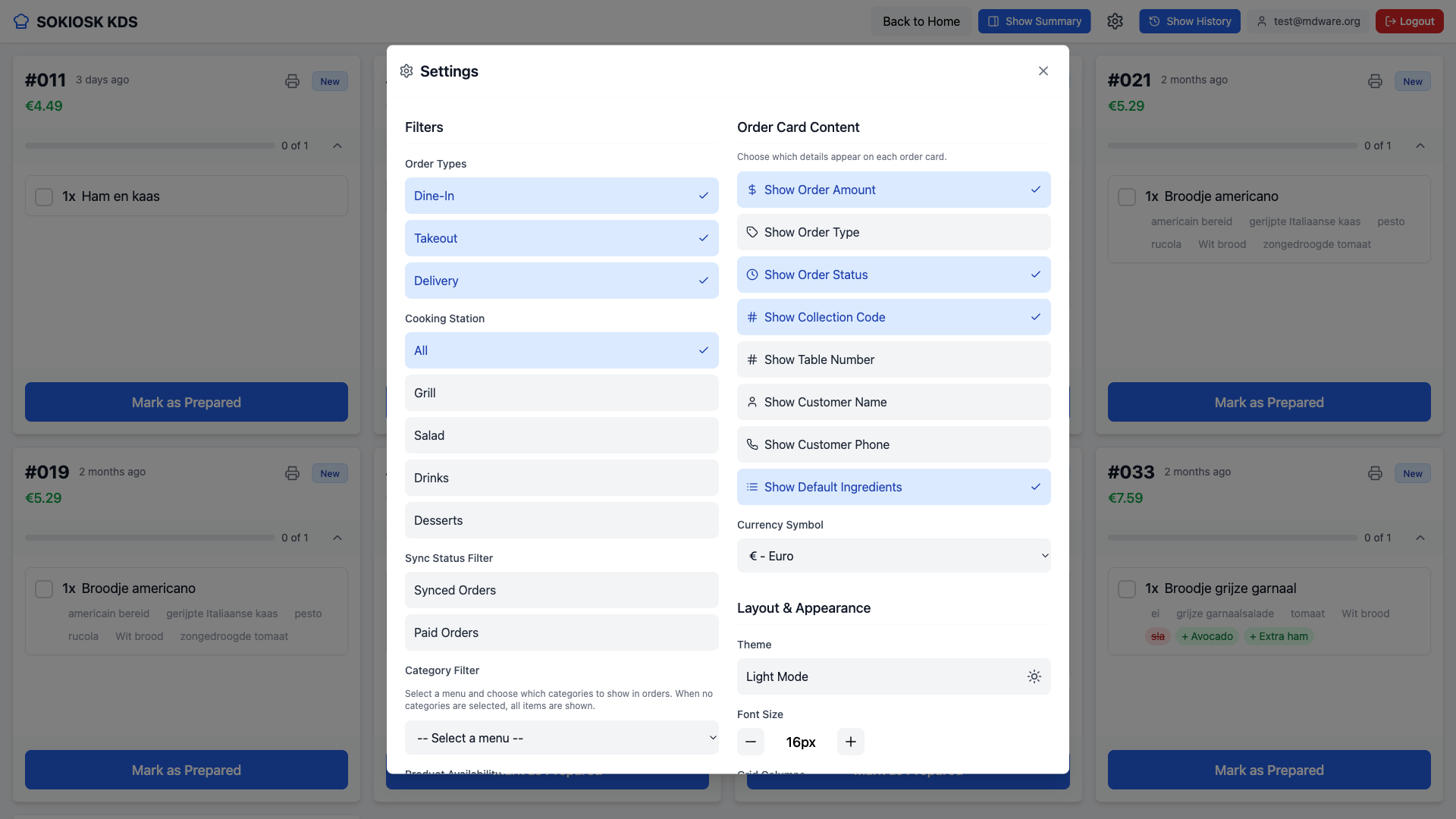
Tip: use the Filters (order type, cooking station, category) to show only the tickets intended for your station.