KDS settings: printer and pickup link
For: kitchen staff and owner.
Kitchen printing (receipts)
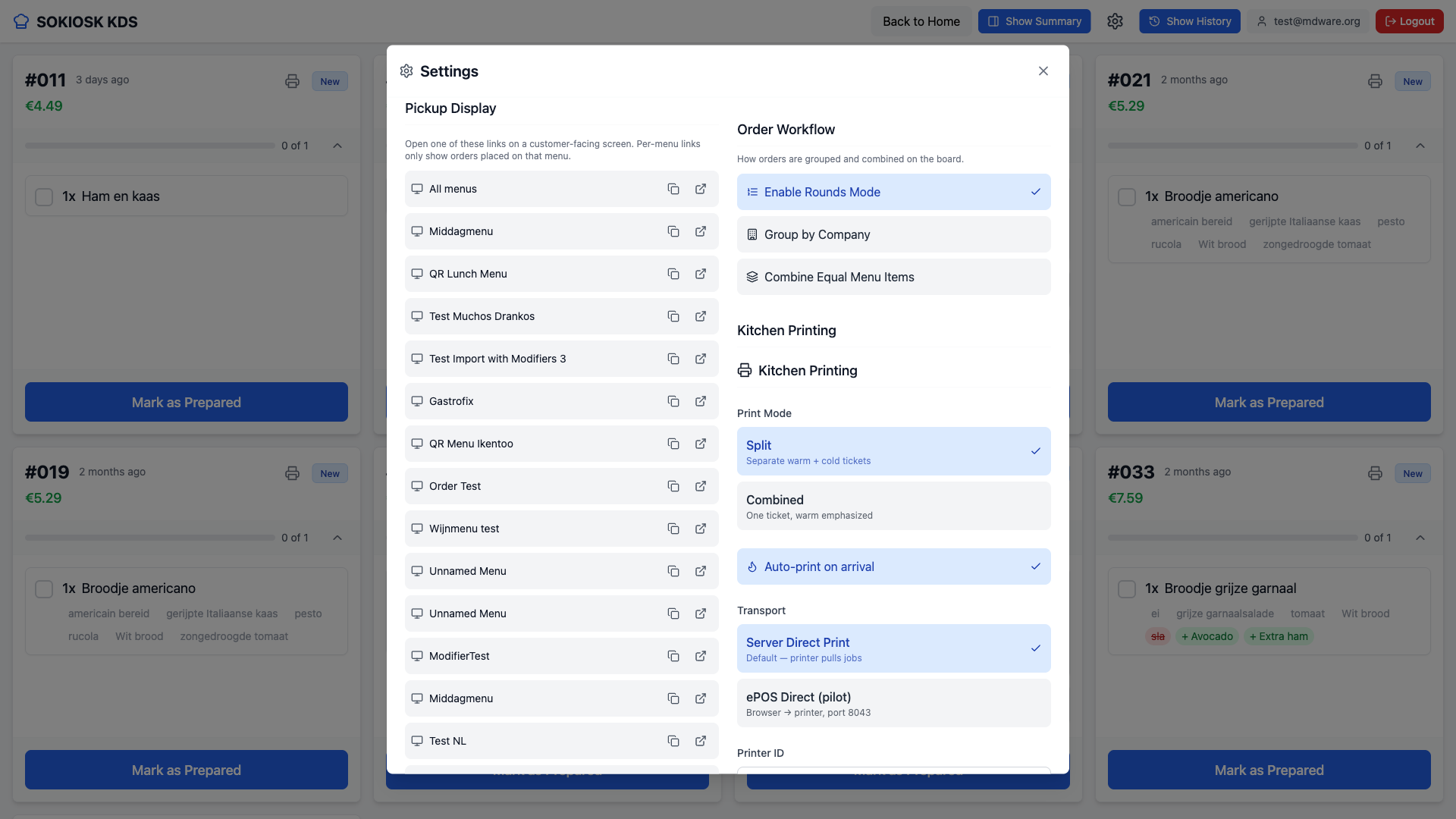
Open the settings via the gear icon and go to Kitchen Printing.
Choose the Print Mode: Split (a separate receipt per item) or Combined (everything on one receipt).
Turn on Auto-print on arrival to automatically print every new order.
Choose under Transport how you print (e.g. Server Direct Print) and fill in the Printer ID if necessary. You can also print a separate receipt using the print icon on a ticket.
Share pickup display
Under Pickup Display you will find a link for each menu.
Copy the link or open it, and display it on a customer screen so customers can see when their order is ready.
Note: orders only appear on the pickup screen once the menu has been synchronized to the kitchen screen.